
THE GETTING STARTED GUIDE · NO VIDEO NEEDED

Set up Game DataBase.
One clear step at a time.

A practical written walkthrough using a fictional Discord server. Follow each command in your own server, understand why it matters, and check what the bot should do next.

10 setup steps79 documented actions0 videos to download
GDB EXAMPLE SERVER ILLUSTRATION
# general
# game-deals Giveaways
# key-alerts Paid sales
SERVER COUNTERS
👥 Members: 3
📚 Channels: 2
🎭 Roles: 1
These are example names and counts, not live server data.
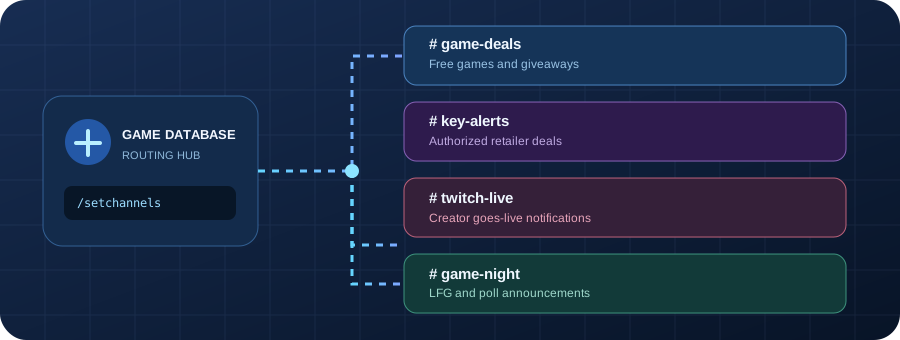
VISUAL SETUP / FOUR ROUTES

Set up your feeds once.

Use one command to send each kind of notification to the right channel. Streamer follows and community posts have independent destinations.

Game DataBase channel routing diagram: game deals, paid key alerts, Twitch streams and community game nights

Example channel names only. Your own Discord server may use different names.

READ · TRY · VERIFY

Follow these steps in Discord

All responses shown are descriptions or examples of the behavior, not live messages from your account. Click the command links in the Docs for every option and permission.

01
Invite and permissions

Add Game DataBase to your server

Choose a Discord server where you have permission to add apps. Accept only permissions you understand. The bot needs View Channel, Send Messages and Embed Links in announcement channels; for server counter channels it also needs Manage Channels.

EXAMPLE IN DISCORD/invite
✓ What you should see

The bot is visible in your member list and slash commands appear when you type /.

Tip: Use the official invite button above or the bot’s /invite command in an existing server.

02
Create channels

Create channels for deals, Twitch and game nights

In Discord, create text channels for #game-deals and #key-alerts. Optionally also create #twitch-live for stream notifications and #game-night for Looking For Group and poll announcements. Give Game DataBase View Channel and Send Messages permissions in each destination.

EXAMPLE IN DISCORD#game-deals • #key-alerts
✓ What you should see

Two separate text channels are ready for different notification types.

Tip: The two channels must be different. If needed, edit channel permissions for the Game DataBase role.

03
Connect channels

Tell the bot where to send alerts

In any server text channel, type /setchannels. Select #game-deals for game_deals and #key-alerts for digital_game_keys. You can also choose twitch:#twitch-live and community:#game-night. Press Enter. Alternatively, use /setchannel with its optional kind choice to change one destination. Only server managers may configure channels.

EXAMPLE IN DISCORD/setchannels game_deals:#game-deals digital_game_keys:#key-alerts twitch:#twitch-live community:#game-night
✓ What you should see

The bot privately confirms where giveaways and retailer sales will be posted.

Tip: Run /channels afterward to confirm both destinations. Slash options are selected in Discord’s picker.

04
Test permissions

Make sure the bot can actually post

Run /test and select Game giveaways. Confirm the message arrives in #game-deals. After the cooldown, test Digital game keys, Twitch or Community too. The test only verifies delivery; it does not create real offers or a fake livestream.

EXAMPLE IN DISCORD/test target:[Game giveaways]
✓ What you should see

You receive a test confirmation, or a specific permissions error that tells you what to fix.

Tip: If no message appears, verify View Channel, Send Messages, and Embed Links for the bot.

05
Choose filters

Decide how many alerts your server should receive

Run /filters with free_only:true if you want only giveaways, or free_only:false if you want qualifying paid offers too. Set minimum_discount to the percentage threshold you prefer.

EXAMPLE IN DISCORD/filters free_only:false minimum_discount:75
✓ What you should see

Game DataBase privately confirms your saved alert filters.

Tip: For authorized-store auto alerts, run /keyalerts enabled:true separately—those notifications are opt-in.

06
Retailer deals

Preview paid deals before turning on automation

Run /digitalgamekey with preview:true to review authorized retailer listings without posting. If appropriate, turn on /keyalerts and configure minimum_discount, max_price and daily_limit.

EXAMPLE IN DISCORD/digitalgamekey limit:5 preview:true
✓ What you should see

You see private matching deals or a no-results message. Nothing is posted while preview is true.

Tip: The first enabled automatic scan establishes a baseline; it does not post older offers in bulk.

07
Add server counters

Show member, channel and role counts in the sidebar

Ensure you and the bot have Manage Channels; you also need Manage Server. Run /serverstats setup. It creates a category of display-only voice channels for Members, Channels and Roles.

EXAMPLE IN DISCORD/serverstats setup
✓ What you should see

The bot lists the counter channels it created. They appear in the server sidebar.

Tip: Counter updates are deliberately paced and member totals can be cached; /serverstats refresh queues, not forces, an immediate rename.

08
Use gaming tools

Find games and set private price alerts

Run /findgame to obtain a numeric Steam App ID, then /game or /players for details. Use /watch to track a Steam price-drop, or /dealwatch for a supported authorized-retailer price target.

EXAMPLE IN DISCORD/findgame title:Portal 2
✓ What you should see

Game DataBase shows matching games and their App IDs. Then use /watch app_id:620 for Portal 2 if its USD price is available.

Tip: Personal watch notifications are opt-in and require DMs enabled; /dealwatch checks approximately every three hours.

09
Organize game nights

Create an LFG session or vote on the next game

Run /lfgcreate to announce a group; others run /lfgbrowse and /lfgjoin using its ID. For votes, run /gamepoll with 2–6 comma-separated games, then /gamevote and /pollresults.

EXAMPLE IN DISCORD/gamepoll options:"Minecraft, Rocket League, Valheim"
✓ What you should see

A numbered poll is posted with its ID. Members vote using /gamevote id:1 choice:2 (replace 1 with your actual poll ID).

Tip: The bot provides an ID after a new group or poll is created—always use the ID returned in your server.

10
Verify and launch

Double-check your public server setup

Run /channels to verify destinations, /keyalertstatus to check paid-deal automation, /serverstats list for counters and /status for the bot’s status. You can leave optional integrations off.

EXAMPLE IN DISCORD/channels
✓ What you should see

A private status message shows which channels are configured and whether anything needs attention.

Tip: Twitch and IGDB release commands require optional API credentials configured by the bot owner; no extra Cloudflare KV is needed for the written help center.

Ready to explore more?

After setup, browse all 80 commands—Steam game details, price comparisons, watchlists, game polls, Twitch and server counters—with their options and expected results spelled out.

Explore every command →
SOLVE COMMON ISSUES

Frequently asked questions

Why does Discord say the command is unavailable?

Make sure the bot has been added to this server, give its slash commands time to sync, and verify that your role can use the command. Server-settings commands are restricted to managers.

Why can’t the bot post in #game-deals or #key-alerts?

Check the bot’s role and channel overwrites for View Channel, Send Messages and Embed Links. Run /test for each destination. Also confirm the two destinations are different.

Why is /digitalgamekey not posting?

Start with /digitalgamekey preview:true. Paid posting needs a configured key-alert channel, enabled server notifications, free_only:false and the required retailer integration. Posting limits and deduplication also apply.

Why does /serverstats still show an old member count?

Member totals may be cached and counter-channel updates are throttled to avoid Discord rate limits. Run /serverstats refresh once and allow time; /serverstats info may also show a cached estimate.

Why am I not receiving Steam or retailer price-alert DMs?

Watches are opt-in; verify /watchlist or /dealwatchlist, enable DMs from shared servers, and remember that the price must drop below the saved baseline or target for a notification to fire.

Does /canirun inspect my computer?

No. It shows the published PC requirements. The bot cannot scan your hardware or determine whether the game will run on your particular machine.

Why are Twitch or /releases lookups unavailable?

These optional integrations require API credentials configured by the Game DataBase operator. Server managers do not need to share Twitch or other account passwords.

Why is a Steam game price missing?

Steam’s data can be region-specific, cached or temporarily unavailable. Try again later; for authorized-retailer comparisons use /gameprices and set a supported region with /region.

Does this website execute commands in my server?

No. The examples are instructions only. You must enter slash commands in Discord; the website does not access your server or request your bot token.

How are private watchlists and suggestions deleted?

Use /clearwatchlist confirm:true, /cleardealwatches confirm:true, /clearbacklog confirm:true or /clearsuggestions confirm:true for your own records. See the Privacy page for additional details.

OPTIONAL / TWITCH LIVE NOTIFICATIONS

How to activate Twitch alerts

This setup is only needed if your server wants automatic notifications when followed creators start streaming. The bot owner must configure Twitch credentials on Quaxly first.

  1. Register a Twitch developer application and obtain its Client ID and Client Secret. Keep the secret private.
  2. On Quaxly, add TWITCH_CLIENT_ID and TWITCH_CLIENT_SECRET to the private environment configuration. Restart Game DataBase.
  3. Create a server text channel such as #twitch-live with View Channel, Send Messages and Embed Links permissions for the bot.
  4. Run /setchannel channel:#twitch-live kind:[Twitch goes-live alerts] as a server manager.
  5. Run /twitchfollow username:[creator] for each creator (up to five per server). Check /twitchfollows and /channels.
  6. Run /test target:[Twitch live alerts] to verify posting permissions. This is only a delivery test; real alerts depend on successful Twitch API checks.

Automatic Twitch checks run periodically on Quaxly. A newly followed creator who is already live may be recorded as the initial baseline rather than announced immediately. /releases is an on-demand lookup, not an automatic channel alert.

Read the Twitch command instructions →